Download PowerPivot for Excel
To download the Power Pivot add-in, please follow the instruction as below:
1) If you have Office 2010 AND your site is on SP 2010, use this PowerPivot install
https://www.microsoft.com/en-us/download/details.aspx?id=7609
2) If you have Office 2010 AND your site is on SP 2013, use this PowerPivot install
Microsoft SQL Server 2008 R2 - PowerPivot for Microsoft Excel 20103) If you have Office 2013, it is built in. Must enable add-in as below.
https://www.microsoft.com/en-US/download/details.aspx?id=43348
- Go to File > Options > Add-Ins.
- In the Manage box, click COM Add-ins> Go.
- Check the Microsoft Office Power Pivot box, and then click OK. If you have other versions of the Power Pivot add-in installed, those versions are also listed in the COM Add-ins list. Be sure to select the Power Pivot add-in for Excel.
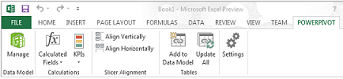
Open the Power Pivot window
-
Click Power Pivot.
This is the tab where you work with Power Pivot PivotTables, calculated fields, and key performance indicators (KPIs), and creating linked tables. -
Click Manage.

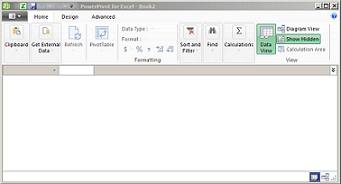
More aboutPower Pivot.
Troubleshooting: Power Pivot ribbon disappears
In rare cases, the Power Pivot ribbon will disappear from the menu if Excel determines that the add-in is destabilizing to Excel. This might occur if Excel closes unexpectedly while the Power Pivot window is open. To restore the Power Pivot menu, do the following:- Go to File > Options > Add-Ins.
- In the Manage box, click Disabled Items > Go.
- Select Microsoft Office Power Pivot and then click Enable.
- Close Excel.
- Point to Start > Run and then type regedit.
-
In Registry Editor, expand this registry key:
If you have Excel 2013: HKEY_CURRENT_USER > Software > Microsoft > Office > 15.0 > User Settings.
If you have Excel 2016: HKEY_CURRENT_USER > Software > Microsoft > Office > 16.0 > User Settings - Right-click PowerPivotExcelAddin and then click Delete.
- Scroll back up to the top of Registry Editor.
- Expand HKEY_CURRENT_USER > Software > Microsoft > Office > Excel > Addins.
- Right-click PowerPivotExcelClientAddIn.NativeEntry.1 and then click Delete.
- Close Registry Editor.
- Open Excel.
- Enable the add-in using the steps at the top of this article.
Comments
Post a Comment